How to record a meeting on a laptop with system audio
How to record a meeting on a laptop with system audio and your mic: who can record in Zoom, Meet or Teams, plus macOS 27, Windows 11 and browser tab steps.
By The MeetNotely team · · 9 min read
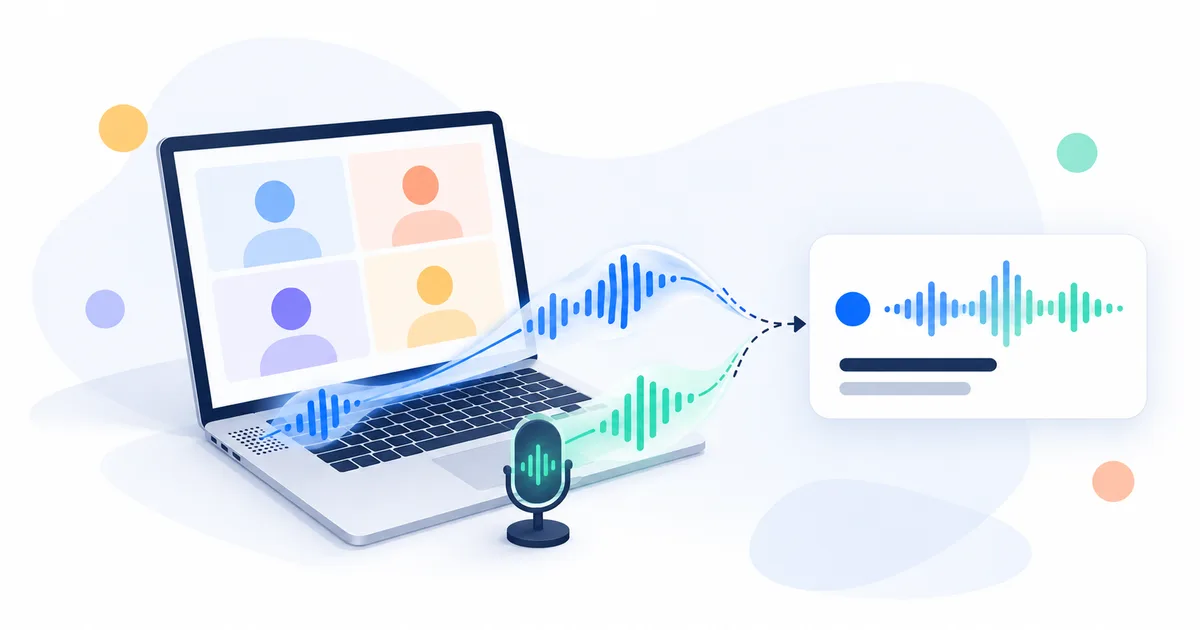
The meeting ends, you play the file, and you hear yourself, then silence wherever anyone else spoke. The recorder took your microphone but not the computer's own sound, which is where everyone else on the call is (that sound is what "system audio" means). To record a meeting with audio from both sides, one file needs both.
Below: the main routes side by side, steps for Mac, Windows and a browser tab, and fixes when the file holds only your voice.
How to record a meeting on a laptop: the methods compared
Each row links or names the official page we read on 26 October 2026, or is our product's documented behaviour; quotation marks are the source's words, and "not stated" means that page doesn't say.
The meeting app's own button
| Method | Who can start it | Plan | Others told | File goes to |
|---|---|---|---|---|
| Zoom computer recording | Host; participants ask the host | "Basic (free) account or above"; desktop app only | Not stated | Your device |
| Zoom cloud recording | "Only hosts and co-hosts" | Licensed Pro, Business or Enterprise user | Not stated | Zoom's cloud |
| Google Meet | Eligible user with recording on, if the host is eligible too | Listed Workspace editions; Google One 2 TB+ | "Participants get a notification" | Organizer's Drive, "Google Meet" folder |
| Microsoft Teams | Licensed user with recording on; "Guests can't record meetings." | Listed Office 365 or Microsoft 365 licence, for the organizer and the recorder | "everyone will be notified automatically" | OneDrive or SharePoint |
Recording it yourself
| Method | Hears the others | Zoom or Teams app | Others told | File goes to |
|---|---|---|---|---|
| Mac Screenshot app | On macOS 27, with Include System Audio | Not tested | Nothing in the call (untested) | Your desktop, by default |
| QuickTime Player (same Apple page) | Own window: mic only; if the Screenshot controls open, as above | Not tested | Nothing in the call (untested) | Not stated; it opens when you stop |
| Windows 11 Snipping Tool (Microsoft, 2023, linked below) | "PC audio" | Not tested | Nothing in the call (untested) | Not stated |
| MeetNotely, browser tab (documented; every plan) | Yes: tab sound plus mic | No | Nothing in the call | MeetNotely, with transcript and notes |
| MeetNotely notetaker (documented; every plan) | Yes, it joins the call | Yes, by link or calendar; the host may need to admit it; on Zoom it joins once you're in | Posts a chat message | MeetNotely |
Our call: if you host on an eligible plan, press the built-in button: the file lands where the platform keeps it, and Meet and Teams tell everyone it's recording. If the call runs in a browser tab, a tab recording takes both sides with nothing joining. If you're a guest and the platform won't let you record, ask the host. With their OK, record your computer's system audio and tell everyone. If they say no, don't record at all.
Who can record in Zoom, Google Meet or Teams
In Zoom, the host decides. In Meet and Teams, it depends on your edition or licence and the host's or organizer's.
Zoom
Zoom now calls its free option computer recording (older guides say "local"). It needs the desktop app, and "Computer recording is not supported on iOS, iPad, or Android devices." Participants ask the host; "Only hosts and co-hosts can start a cloud recording."
Google Meet
You need a listed edition, and "a Google Workspace administrator must turn on recording for your account." The catch for guests: "Even if you have the necessary permissions, you can’t record a meeting if the host doesn't have them."
Microsoft Teams
"Both the meeting organizer and recorder" need a listed licence, and you need recording "enabled by an IT admin". Microsoft adds: "Guests can't record meetings. Federated users can record calls, but not meetings."
Record a meeting on a Mac, with system audio
On macOS 27 or later, the Screenshot app records the call's sound and your voice together. Press Shift, Command and 5, then click Options. Apple: "To record system audio with the screen recording in macOS 27 Golden Gate or later, choose Include System Audio." For your voice, "choose a microphone." You need both.
QuickTime Player's own Screen Recording window offers a microphone, no system audio. If New Screen Recording opens the Screenshot controls instead, Apple says the Screenshot app is recording, so Include System Audio applies.
Apple's page offers system audio only from macOS 27; on an older Mac you'd need a third-party app, which macOS must allow under "Screen & System Audio Recording" (Apple). We haven't tested the Mac route on a live call.
Record a meeting on Windows 11
Snipping Tool records the screen with Windows logo key + Shift + R (Microsoft). For sound, per Microsoft's 2023 Insider post (version 11.2307.44.0, Canary and Dev channels), it added "support for optionally recording your PC audio and voice overs using a microphone." The current Snipping Tool page doesn't mention recording PC audio, and we didn't test Windows.
Record a browser tab with its sound
To record an online meeting with audio from the browser, share the call's tab, not the screen: the tab carries everyone's voices. Chrome's docs show that when a site leaves system audio out, "Sharing tab audio is offered in "Chrome Tab" pane, but not in "Entire Screen" pane."
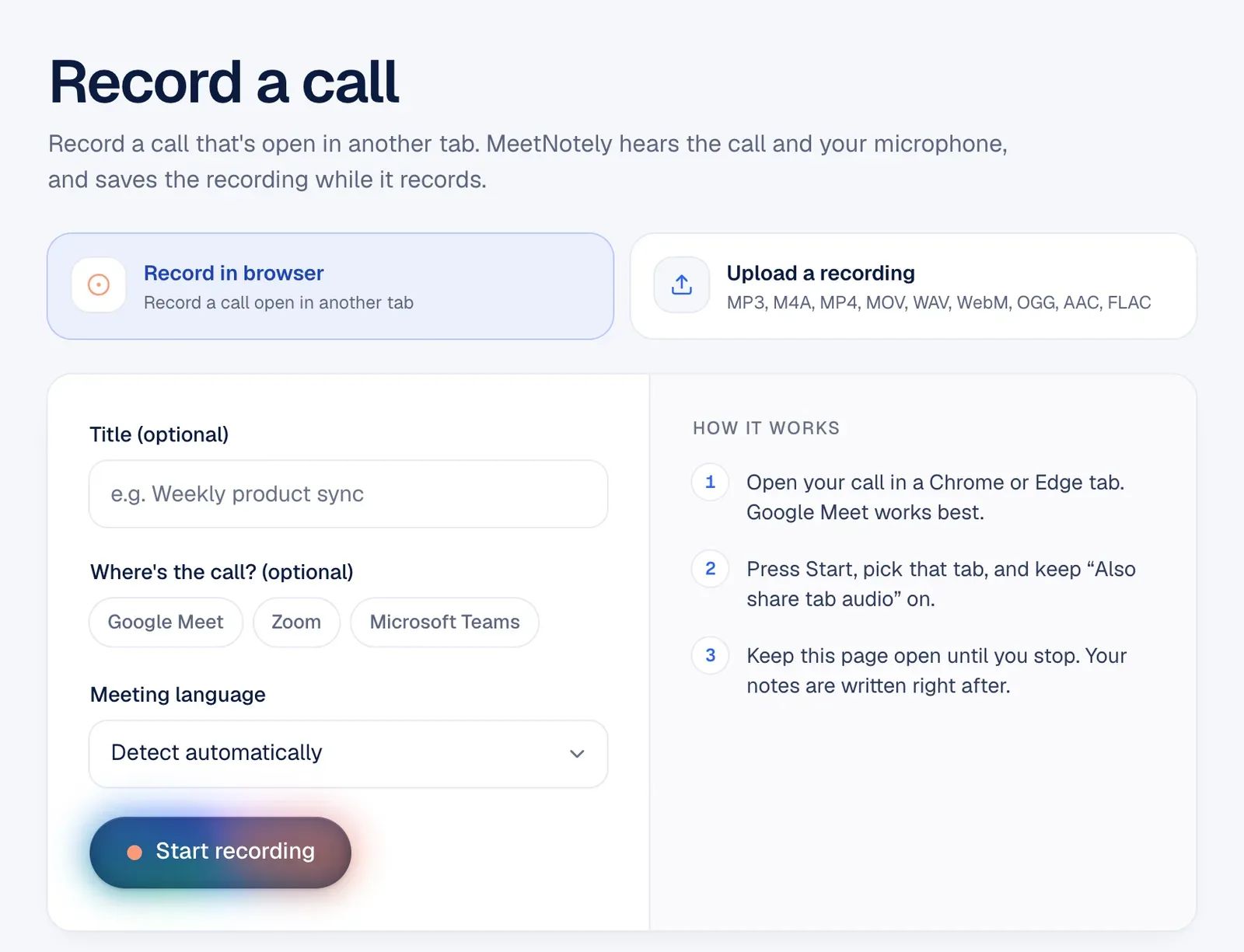
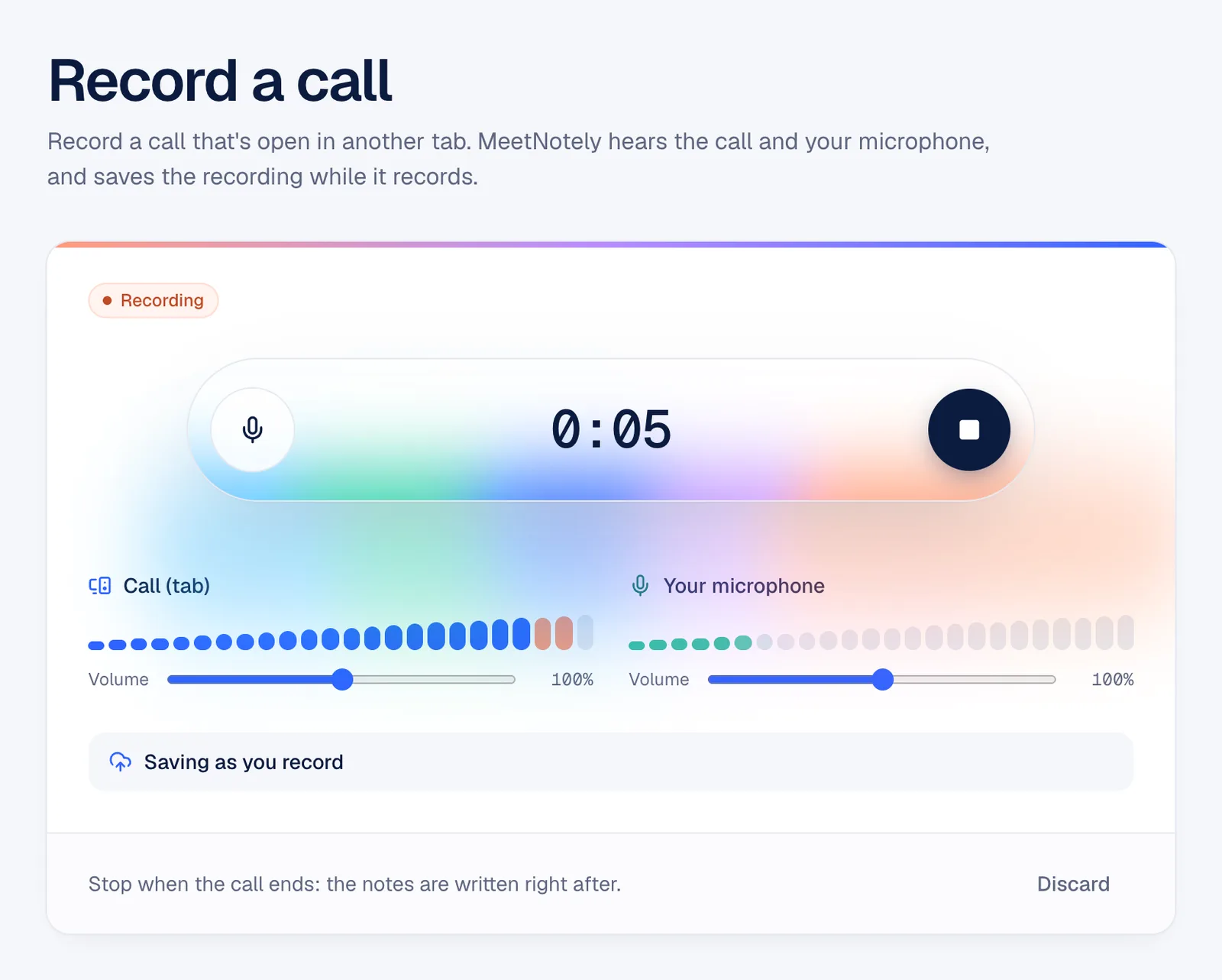
This is how MeetNotely records a call without a bot. Open the call in a Chrome or Edge tab on a computer, press Start and pick that tab: it records the tab's sound plus your microphone, audio only, and nothing joins the call. Keep its page open until you stop. It can't hear the Zoom or Teams desktop apps, which aren't tabs: join on the web, or send the notetaker (what a browser tab can and can't hear). Google Meet in the browser works best. Nothing tells the others, so tell them. You get transcripts and notes in the language spoken, including calls that switch languages.
Why does my recording only have my voice?
A recording has only your voice when it took the microphone but not system audio. The causes we know, with fixes:
- Microphone only. QuickTime's own window offers no system audio; the Screenshot app needs Include System Audio, which needs macOS 27 (Apple).
- You shared a window or the screen, or turned the tab's sound off. Chrome offers tab audio only when you pick a tab (Chrome docs). Share the call's tab. Our recorder then says: "The shared tab had no sound. Start again, pick the Chrome tab with your call, and make sure “Also share tab audio” is on."
- The call was in the Zoom or Teams desktop app, which a tab recording can't hear. Join on the web or send the notetaker: the browser tab, the notetaker and file uploads side by side.
- A third-party recorder isn't allowed under Screen & System Audio Recording (Apple).
- The reverse, only the others: no microphone chosen. To record computer audio and microphone at the same time, turn both on first. Our recorder warns: "Your microphone is blocked, so your own voice won't be recorded."
Tell people before you record
Your computer's recorder and a browser tab put nothing in the call, as far as we know, so tell people at the start. Google's and Microsoft's pages say their recordings notify people; the Zoom pages we read don't say. Our notetaker, as documented, posts a chat message that it's recording. The rules where you and the others are still apply. This isn't legal advice.
Where the recording ends up
Before the meeting, make a 30-second test recording with the same route and play it back: you should hear the computer's sound and your voice, and know where the file went. The Snipping Tool page says where screenshots go, not screen recordings, so check on the day.
You can upload a file recorded elsewhere to MeetNotely on Pro (20 a month) and Enterprise (no file count), not on Free: MP3, M4A, MP4, MOV, WAV, WebM, OGG, AAC or FLAC, up to 2 GB and 2 hours per file (which plans let you upload a recording). Then turn the recording into meeting minutes.
Questions people ask
Can I record a Zoom meeting if I'm not the host?
Yes, with Zoom's computer recording in the desktop app, if the host gives you permission. Cloud recording is only for hosts and co-hosts.
Why is there no record button in Google Meet?
Your edition isn't on Google's list (free Gmail isn't), an admin hasn't turned Meet recording on for you, or the host isn't eligible.
Does QuickTime record system audio?
Not in its own Screen Recording window, which has only a microphone. If the Screenshot controls open instead, Include System Audio records the computer's sound on macOS 27.