The MeetNotely app for Zoom lets MeetNotely's notetaker join the Zoom meetings you're in, record them and write your notes, with every point linked to the moment it was said. This page explains how to add the app, how to use it, how to remove it, and what happens to your data when you do.
1.What the app does
- Lets the notetaker into your Zoom meetings. Zoom admits a notetaker only on behalf of a signed-in Zoom user who is in the meeting. Once you connect Zoom, MeetNotely asks Zoom for a short-lived token for each meeting you send the notetaker to, and the notetaker joins as your notetaker.
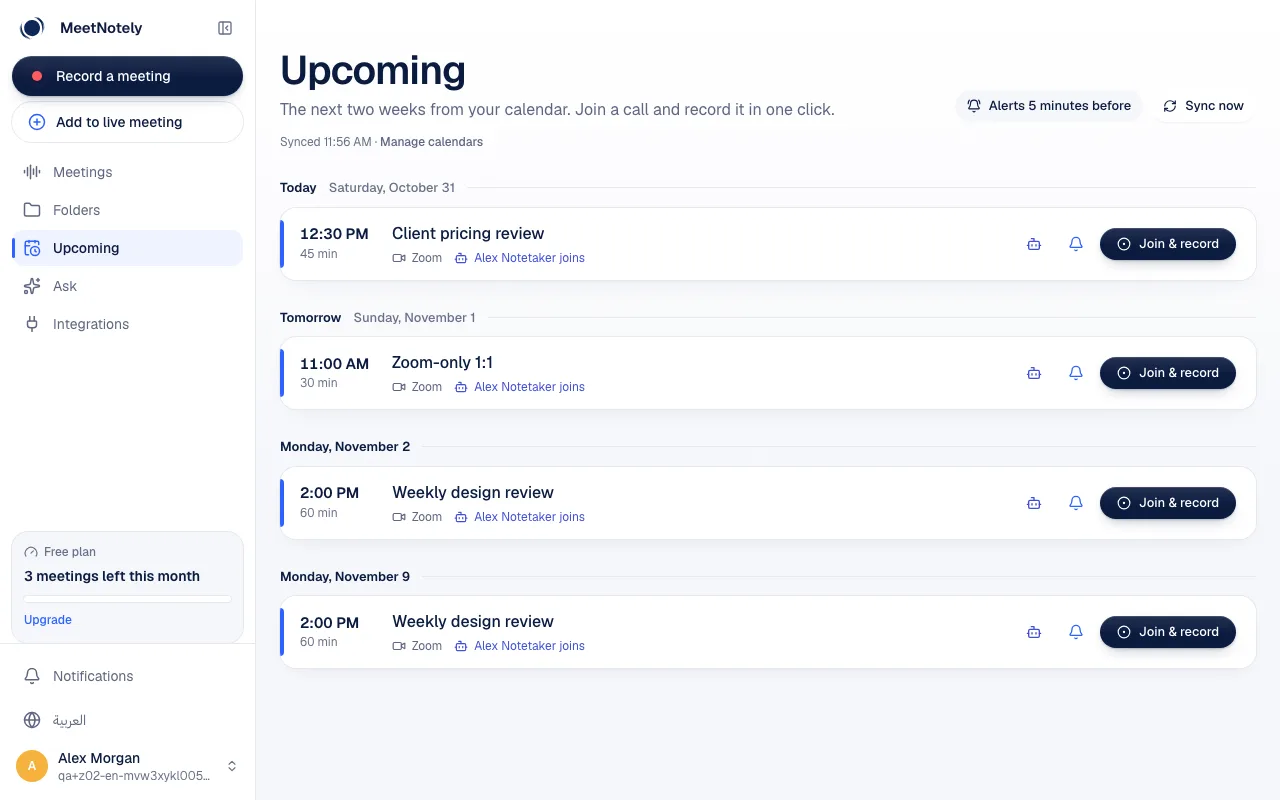
- Shows your upcoming Zoom meetings in MeetNotely. The meetings you schedule in Zoom appear in Upcoming, with alerts, and the notetaker can join them by your notetaker settings. You can turn this off.
The notetaker joins only while you're in the meeting, and leaves when you do. It posts a short message in the meeting chat saying it is recording for MeetNotely.
2.Before you start
- A MeetNotely account. The free plan works; create one at https://app.meetnotely.com/signup.
- A Zoom account (any plan) that you use to join or host your meetings.
- Meeting links with the meeting number (zoom.us/j/…). Personal meeting links (zoom.us/my/…) don't include the meeting number, so the notetaker can't use them.
3.Add the app
From MeetNotely:
- Sign in to MeetNotely and open Integrations, then Zoom (https://app.meetnotely.com/app/integrations/zoom).
- Press Connect Zoom.
- Zoom shows what MeetNotely asks for. Sign in to Zoom if it asks, then press Allow.
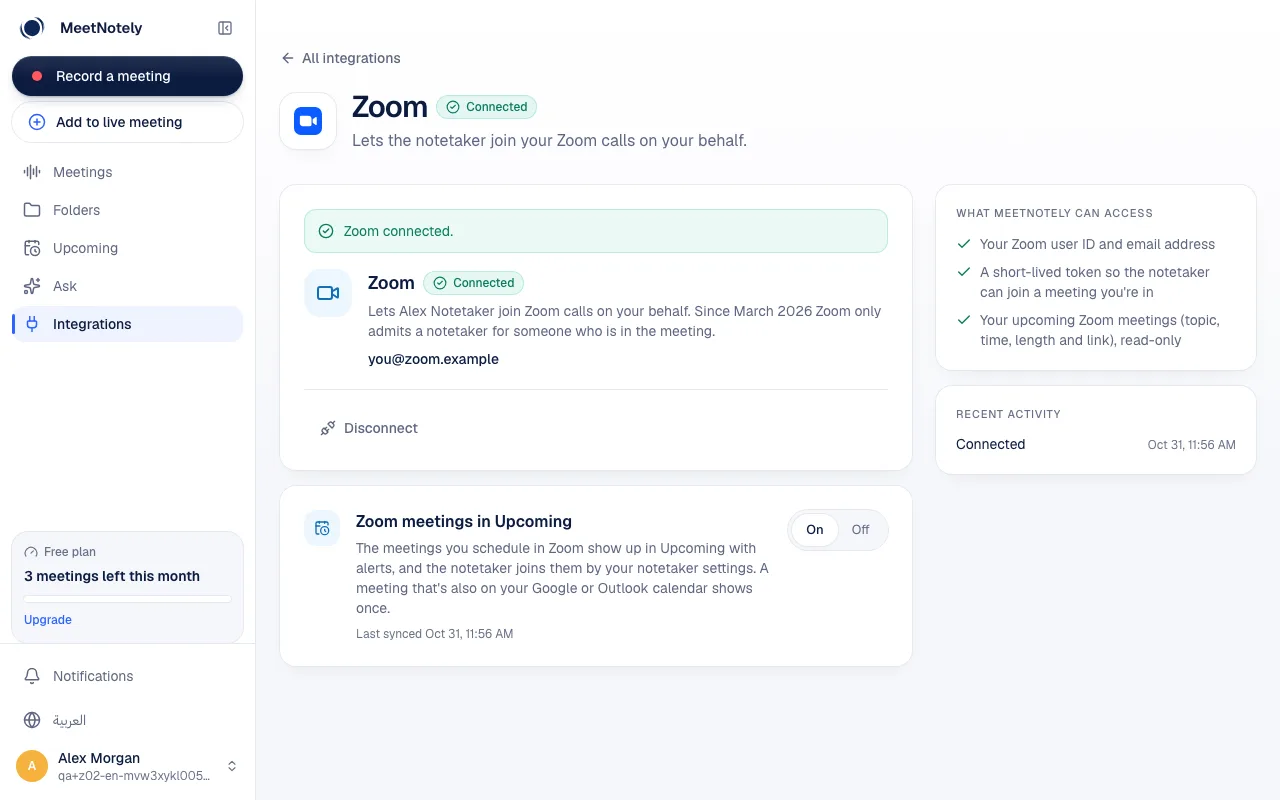
- You're back on the Zoom page in MeetNotely, which says Zoom connected and shows your Zoom email address.
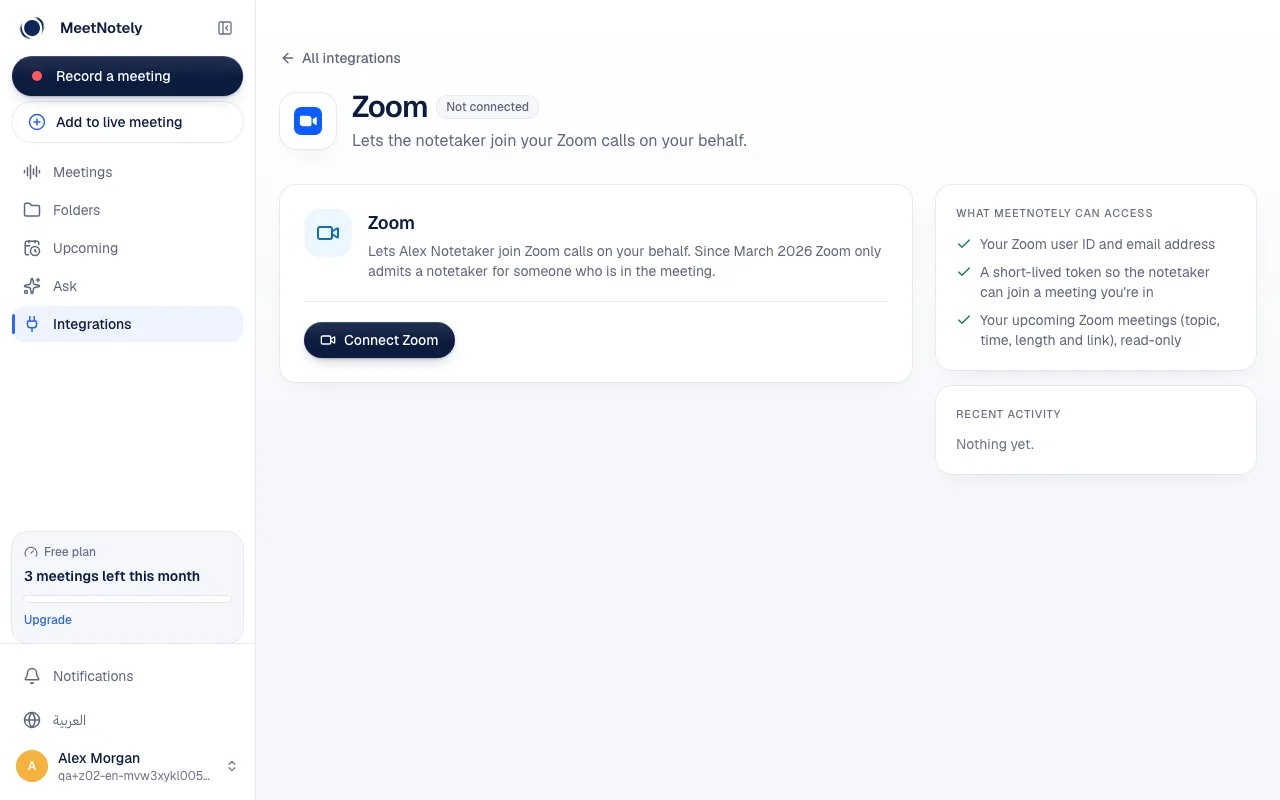
From the Zoom App Marketplace: find MeetNotely and press Add. You go to the Zoom page in MeetNotely; sign in (or create a free account) and you come back to that page. Press Connect Zoom and allow access as above.
4.What the app can access
MeetNotely asks Zoom only for what these features need:
- Your Zoom user ID and email address, to show which Zoom account is connected.
- A short-lived token for a meeting you're in, requested only when the notetaker is joining that meeting. It lets the notetaker join as your notetaker and is never stored.
- Your upcoming Zoom meetings (topic, start time, length and link), read-only, for Upcoming.
MeetNotely can't start, change or delete your Zoom meetings, and can't read your Zoom contacts, chats or cloud recordings. The tokens Zoom gives us are kept encrypted on our servers and never reach your browser.
5.Use the app
Send the notetaker to a meeting you're in:
- Join your Zoom meeting first.
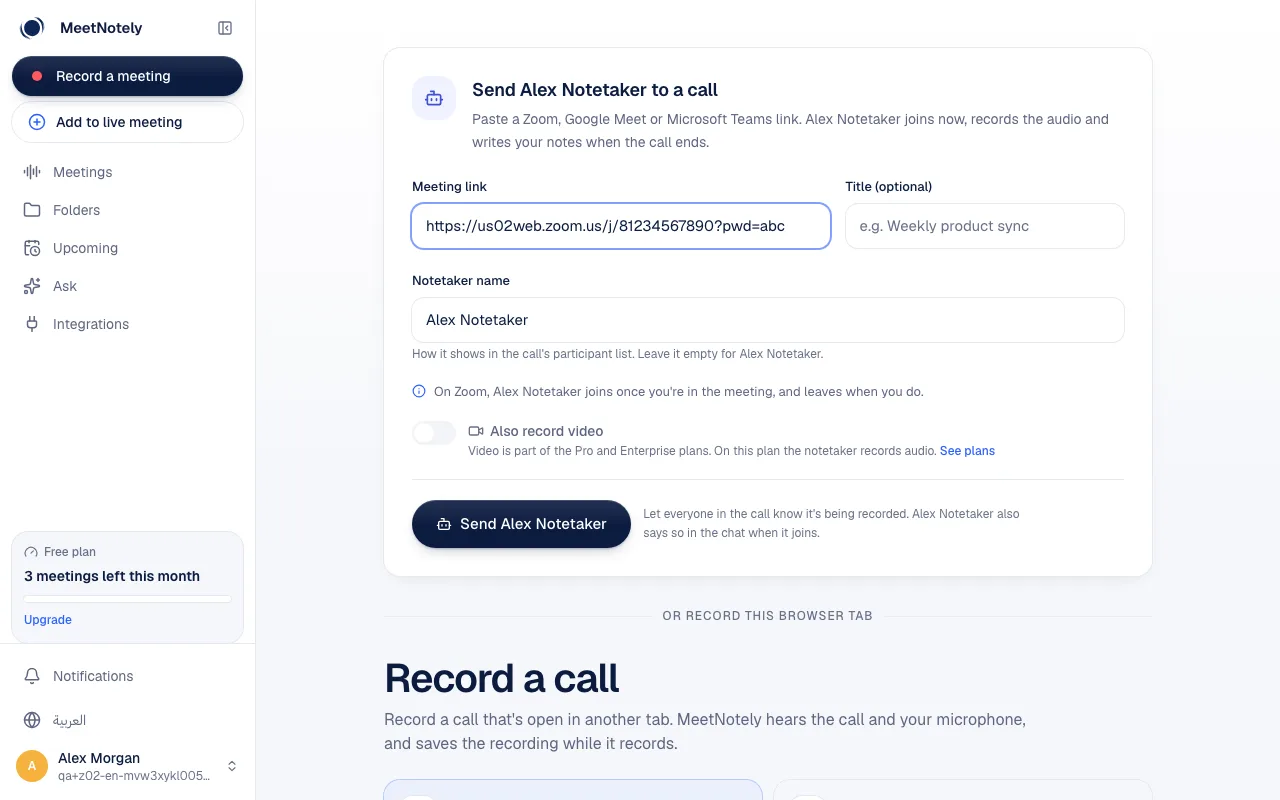
- In MeetNotely, press Add to live meeting (or open Record a meeting).
- Paste the Zoom meeting link and press Send.
- If the meeting has a waiting room, admit the notetaker. It joins under your notetaker's name and posts a message in the chat.
- When you leave or the meeting ends, the notetaker leaves too. The transcript and notes appear in Meetings a few minutes later.
Let it join on its own: with Zoom meetings in Upcoming turned on (on the Zoom page in MeetNotely), your Zoom meetings are listed in Upcoming. Choose which ones the notetaker joins in Settings, under the notetaker, or per meeting in Upcoming. You still need to be in the meeting for it to join.
6.What participants see
MeetNotely's notetaker joins your Zoom meeting as a participant. It has no window of its own, and nothing from MeetNotely runs inside the Zoom app. Everyone in the meeting sees it through Zoom itself:
- In the participant list, under your notetaker's name, and its message in the meeting chat saying it is recording for MeetNotely.
- It's there only while you are: it joins once you're in the meeting and leaves when you leave.
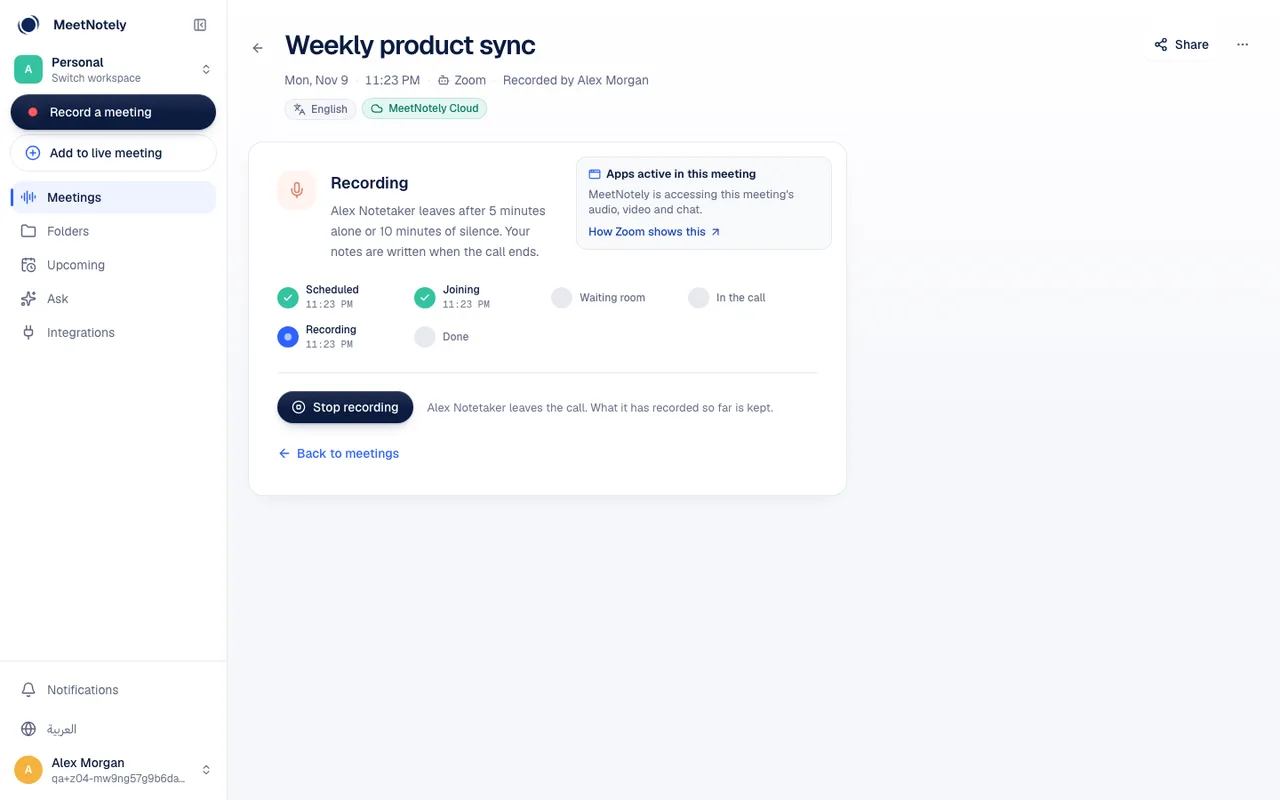
In MeetNotely, while the notetaker is in a Zoom call, the meeting page says the same: which app is accessing the meeting's audio, video and chat.
7.If something doesn't work
- “You weren't in the Zoom meeting”: Zoom only lets the notetaker in while you're in the meeting. Join, then send it again.
- The notetaker waits and then gives up: someone needs to admit it from the waiting room within 15 minutes.
- “Zoom stopped accepting this connection”: the connection was removed or expired in Zoom. Open the Zoom page in MeetNotely and connect again.
- Recording isn't allowed: the host or the Zoom account's admin can block recording or apps in meetings. Ask the host to allow it, or record the call in your browser instead.
8.Remove the app
You can remove the app from either side; both have the same effect.
In MeetNotely:
- Open Integrations, then Zoom.
- Press Disconnect.
In Zoom:
- Sign in to the Zoom App Marketplace (marketplace.zoom.us).
- Open Manage, then Added Apps.
- Find MeetNotely and press Remove.
9.Your data after you remove the app
- Right away, MeetNotely revokes its access at Zoom (when you disconnect in MeetNotely) and deletes the Zoom tokens, your Zoom user ID and email address.
- Your Zoom meetings disappear from Upcoming, and the notetaker can no longer join Zoom meetings for you.
- The meetings the notetaker already recorded stay in your MeetNotely account, with their transcripts and notes, until you delete them. Delete a meeting from its menu, or your whole account in Settings, under your account.
- We keep a dated line in the integration's activity saying the connection was removed, with no Zoom data in it.
To connect Zoom again later, add the app again. More about what we keep and for how long is in our privacy policy.
10.Get help
Write to hello@meetnotely.com. We answer Sunday to Thursday, within 1 business day. More ways to reach us are on our support page.